Point, don't describe: giving feedback with pins, regions and ranges
Feedback on video is mostly about places: this word, that corner, the moment the cup appears. Writing those places down in words is slow, and it is the most common reason edits miss. Studucer lets you point instead.
Four ways to mark what you mean
- Pin a spot on the frame. Good for a single element: a title, a logo, a face.
- Region: draw a box around an area of the frame. Good for “this whole corner is too busy” or “keep this area clear for captions”.
- This moment or a range on the timeline. Drag across the timeline to select from one time to another, or mark the playhead position.
- Scene: attach a whole scene to your message.
You can combine marks with any message, and add as many as you need. Each one is numbered on the frame or timeline so you can refer to it.
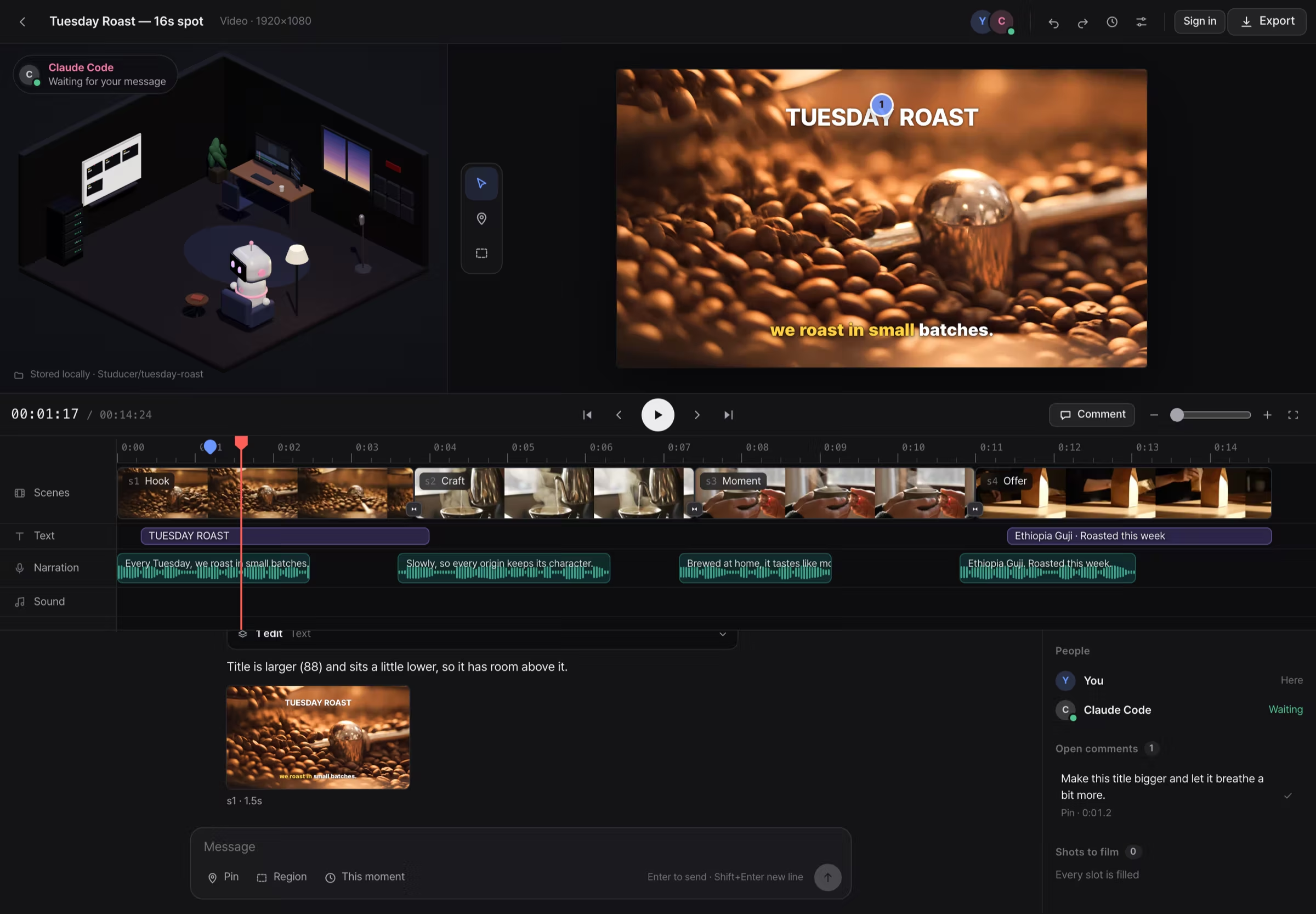
What the agent receives
Marks are anchored to the scene that was playing when you made them, so they keep pointing at the right thing even if scenes move later. The agent gets:
- the scene and the time within the scene for pins, boxes and moments,
- the scenes covered by a range,
- for pins and boxes, an image of that frame with your mark drawn on it.
So “make this bigger” with a pin on the title is a complete instruction. The agent knows which text layer you mean and can see it.
Comments that don't get lost
Messages with marks stay in Open comments next to the conversation until they are resolved. The agent marks them resolved when it handles them, and you can resolve or reopen any comment yourself. When you come back to a project the next day, the list shows what is still open.
You can also leave a comment straight on the timeline at the playhead, without writing in the main chat. It works like a marker you and the agent can both see.
Why it matters
- Fewer misunderstandings. The agent edits the thing you pointed at, not the thing it guessed.
- Shorter messages. Most requests fit in one line.
- Smaller edits. Precise requests lead to precise changes, which are easier to review and to undo.
Try it
Open a project, press the pin tool, click the element you want to change, and write what you want. More on how conversation-based editing fits together in Editing video with an AI agent.
Try it on your next project
Describe what you want to make, point at what to change, and let your agent do the editing.
Get StuducerKeep reading
Editing video with an AI agent: why a conversation beats a single prompt
A finished video is the result of dozens of small decisions. Here is why editing in an ongoing conversation with an agent that sees the whole project works better than starting over from a prompt each time.
Using Claude or ChatGPT to edit video and slides with Studucer
Connect Claude (chats or Claude Code) or ChatGPT's Codex with one click. It joins your Studucer project as a collaborator, keeps its own memory of the session, and edits video and slide decks directly — on your own plan, without Studucer credits.
Storyboard first: plan the video, then film only what's missing
Start from the structure, not the footage. Studucer's agent lays out the scenes and writes exactly what to film for each one, so you shoot a short list instead of everything you might need.